


You can turn a compatible audio file into a ringtone without buying a new tone. The exact process depends on whether you use an iPhone or Android phone. If you want to know how to make a custom ringtone, start with audio saved on your device. On iOS 26, Apple added a much quicker method for suitable audio files. Older iPhone workflows still work through GarageBand when you need editing or another route. Google Pixel and Samsung Galaxy phones let you choose local audio through their sound settings. Quick answer: Save an audio clip you own or have permission to use on your phone. On iOS 26, share a suitable file and choose Use as Ringtone. You can also export through GarageBand. On Pixel, choose a local sound from the ringtone menu. Samsung users can add a file with the plus button.
Custom Ringtone Methods at a Glance
| Phone | Fastest route | Where you start | Extra app needed? |
|---|---|---|---|
| iPhone with iOS 26 | Use as Ringtone | Files app | No |
| iPhone with GarageBand | Export as Ringtone | GarageBand | Yes |
| Google Pixel | Select a local sound | Settings | Usually no |
| Samsung Galaxy | Add an audio file | Settings | No |
Before starting, use audio that you created, purchased with suitable usage rights, or otherwise have permission to use. Streaming access does not automatically give you a reusable audio file. Protected music can also be unavailable for ringtone creation.
What You Need Before You Start
First, get the audio file onto the phone you plan to use. A personal recording, downloaded sound effect, or permitted music file can work. If you want to record your own phrase, our Google Docs voice typing guide shows another way to use your phone’s microphone. The phone must be able to access the file locally. Pick a section that starts clearly and gets your attention quickly. Slow introductions often make poor ringtone clips because calls may be answered before the recognizable section begins. A clean starting point also makes repeated playback sound less awkward. For iPhone, Apple documents a 30-second maximum when exporting a ringtone through GarageBand. GarageBand can shorten an overlong project during export. This guide does not claim a universal Android limit because official Android manufacturer guidance does not provide one.
How to Make a Custom Ringtone on iPhone With iOS 26
The direct iOS 26 method is the simplest choice when your audio is already prepared. It works from the Files sharing menu with compatible short audio. You do not need GarageBand for this route.
- Save the audio in Files. Download the file or save it into the Files app on your iPhone.
- Find the audio file. Open Files and browse to the folder containing your clip.
- Open the sharing options. Touch and hold the file, then choose Share.
- Find the ringtone action. Scroll through the available actions until you see Use as Ringtone.
- Tap Use as Ringtone. iOS adds the audio as a ringtone and selects it.
- Check the ringtone list. Open Settings > Sounds & Haptics > Ringtone if you want to confirm or change it.
The new route removes several steps that iPhone owners previously needed. It works best when you already have the exact section you want. If the source needs trimming or rearranging, GarageBand gives you more control. If Use as Ringtone does not appear, look under More in the share list, then check your iOS version. Also confirm that the item is an accessible audio file rather than protected streaming content. Moving a cloud-only file onto the device may also help when an app cannot access it properly.
Make an iPhone Ringtone With GarageBand
GarageBand remains useful when you need to trim audio before setting it. Apple provides this method for files, downloaded compatible music, and audio you create yourself. Protected or unavailable tracks may appear unusable inside GarageBand.
- Install GarageBand. Get Apple’s GarageBand app if it is not already installed.
- Start an audio project. Touch and hold GarageBand, then choose Create New Audio Recording.
- Switch to Tracks view. Tap the Tracks control after the project opens.
- Open the Loop Browser. Select the track, then tap the Loop Browser button.
- Browse your files. Choose Files, then browse items from the Files app.
- Import the audio. Touch and hold the file, then drag it into the project.
- Move it to the beginning. Place the audio against the left edge so no unwanted silence comes first.
- Trim the section. Drag the edges until the project contains the portion you want.
- Return to My Songs. Use the navigation control and save the project there.
- Select the project. Touch and hold it, or use the selection controls.
- Choose Share > Ringtone. Give the ringtone a name when prompted.
- Tap Export. GarageBand creates the ringtone from your project.
- Choose how to use it. Set it as the standard ringtone or assign it to a contact.
Apple says GarageBand ringtone exports have a maximum length of 30 seconds. If your project exceeds that length, GarageBand can shorten it during export. Trimming it yourself gives you better control over which section survives. After exporting, you can change the sound later through Settings > Sounds & Haptics > Ringtone. You can also open a person’s contact card to assign a different sound to that caller. This makes individual tones useful for family members or important contacts.
How to Set Your Own Ringtone on a Google Pixel
Google Pixel phones handle ringtones through the Sound and vibration settings. Google’s current instructions place the main ringtone picker under that menu. The precise wording can change slightly across Android releases.
- Save your audio on the Pixel. Download or transfer the file to local storage.
- Open Settings. Find the Settings app from your home screen or app drawer.
- Tap Sound & vibration. This opens the phone’s sound controls.
- Tap Ringtone. On some versions, the option may be labeled Phone ringtone.
- Open the custom sound area. Look for My Sounds or the option for adding your own file.
- Choose your audio. Browse storage and select the file you want.
- Preview the sound. Play it before saving when that option is available.
- Tap Save. Your Pixel should now use the selected sound for incoming calls.
If the file does not appear, confirm that it is stored on the phone. A file shown in a cloud service may not be downloaded locally yet. Saving a local copy can make it visible to the ringtone picker. Pixel phones also let you assign different ringtones to individual contacts. Open the Contacts app, select the person, and open the ringtone option. Choose the desired tone and save the contact.
Set a Custom Ringtone on a Samsung Galaxy Phone
Samsung provides an add button directly inside its ringtone settings. This makes a locally stored audio file easy to select on current Galaxy phones. Menu wording can vary slightly by One UI version.
- Save the audio on your Galaxy phone. Download the file or transfer it from another device.
- Open Settings. Use the Settings icon from your app screen or quick settings.
- Tap Sounds and vibration. This menu contains Samsung’s ringtone controls.
- Tap Ringtone. Choose the relevant SIM first if your phone asks.
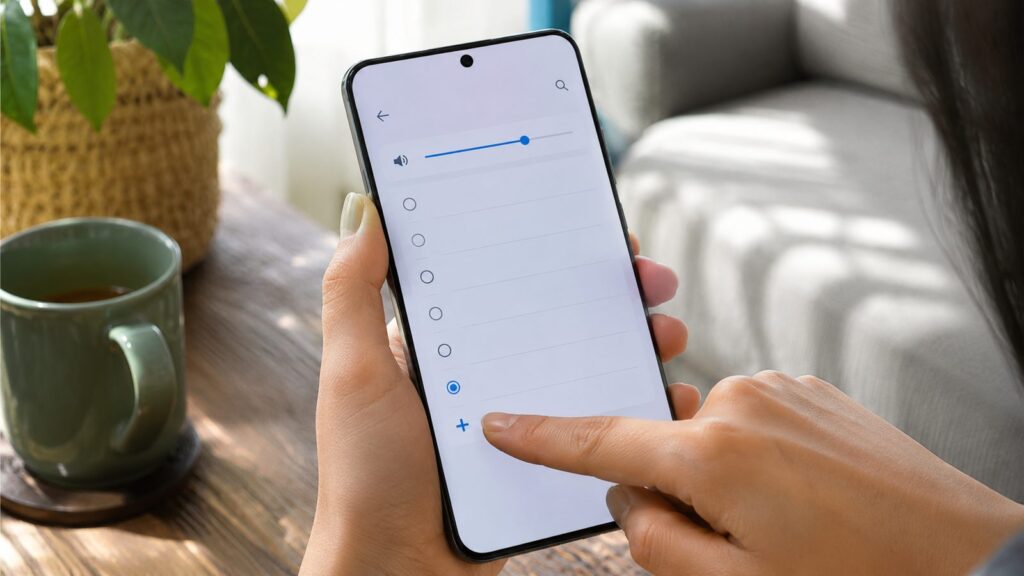
- Tap the plus icon. Samsung uses this button to add audio stored on the device.
- Find your audio file. Browse the available tracks or folders.
- Select the file. Preview it if you want to confirm the sound.
- Finish the selection. Tap Done when your Galaxy model provides that option.
Samsung may also offer a setting that plays a selected highlight from a song. That feature can be useful when you do not want playback to begin at the file’s first second. Its availability can vary between devices and software versions. For one person’s calls, open Samsung Contacts and select that contact. Use the contact options to find the ringtone or ringtone-and-vibration control. Add or choose the sound you want for that person.
Why Your Audio File May Not Appear
A missing file usually means the phone cannot access it from the current ringtone picker. The audio may still be stored only in cloud storage or another application’s protected library. Downloading a normal local copy can solve that problem. Streaming services create another common roadblock. Offline music inside a subscription app is not necessarily exposed as a normal audio file. Your ringtone settings therefore cannot treat every downloaded streaming song like an MP3. File compatibility can also matter. When possible, start with a common audio type supported by your phone and software version. Avoid changing a filename extension and assuming that this converts the underlying audio.
Tips for Making a Ringtone That Sounds Better
Choose a part that becomes recognizable within the first second or two. A chorus, hook, spoken phrase, or distinctive sound often works better than a long musical buildup. Test the clip through your phone speaker before making it permanent. Avoid audio that begins with silence. A quiet opening can make you think the phone failed to ring. Trimming dead space also makes the sound more immediate. Watch the volume while editing your source. Audio that is excessively loud may distort through a small phone speaker. Audio that is too quiet can disappear in a noisy room.
How to Change or Remove the Ringtone Later
On iPhone, return to Settings > Sounds & Haptics > Ringtone and choose another sound. Your installed tones appear with the other ringtone choices. You can also change a contact-specific tone through Contacts. On a Pixel, return to Settings > Sound & vibration > Ringtone and choose a replacement. Samsung users can return to Settings > Sounds and vibration > Ringtone. The previous audio file does not have to remain your active choice. Removing the original audio file may not always remove a ringtone that an app already imported separately. Behavior depends on the method and phone software. Check the ringtone list after deleting source audio if you want to confirm the result.
Frequently Asked Questions
How to make a custom ringtone without a computer?
You can do the entire process on many current phones. iOS 26 lets you use suitable audio from Files through Use as Ringtone. Pixel and Samsung phones can select local audio through their ringtone settings.
Can I use a song from Apple Music as an iPhone ringtone?
A protected Apple Music track may not be available for ringtone export through GarageBand. Apple says protected files cannot be used in that workflow. Use an audio file you own or have permission to use instead.
How long can an iPhone GarageBand ringtone be?
Apple documents a maximum exported ringtone length of 30 seconds in GarageBand. If a project is longer, GarageBand can shorten it automatically. You can also return to the project and trim the exact section yourself.
Is there one ringtone length limit for every Android phone?
This guide does not claim one universal Android ringtone limit. Google Pixel and Samsung support pages explain how to choose ringtones without stating a shared maximum duration. Your phone model and software may handle files differently.
Can I give one person a different ringtone?
Yes, iPhone, Pixel, and Samsung phones support contact-specific ringtone choices. Open the person’s contact information and locate its ringtone setting. Choose the tone you want and save the change.
Make Your Ringtone and Test It
The easiest method depends on where your audio starts and which phone you use. You can find more phone guides on the Newssnaut homepage. iOS 26 is fastest for prepared files, while GarageBand is useful when editing is needed. Pixel and Samsung owners can usually add local audio through their sound settings. After setting the tone, call your phone from another device. Confirm that the volume, starting point, and selected audio sound right. If they do, your new ringtone is ready for everyday calls. —
