



Google Docs voice typing lets you create text by speaking instead of using your keyboard. The feature is free and built into Docs on supported desktop browsers. You can also use spoken commands for punctuation, formatting, selection, and navigation.
Direct answer: Open a document, select Tools > Voice typing, then click the microphone and begin speaking. Google currently supports the feature in recent Chrome, Edge, and Safari versions. You need a working microphone and browser permission to access it. Voice editing commands work in English when the required language settings are enabled.
Google Docs Voice Typing at a Glance
| Feature | What to know |
|---|---|
| Cost | Free with Google Docs |
| Where it works | Desktop browser |
| Supported browsers | Recent Chrome, Edge, and Safari |
| Menu path | Tools > Voice typing |
| Chrome shortcut | Ctrl + Shift + S on Windows; Command + Shift + S on Mac |
| Microphone required | Yes |
| Voice editing commands | Available in English with English account and document settings |
| Mobile use | Use your phone keyboard’s dictation instead |
| Best for | Drafts, notes, outlines, accessibility, and hands-free writing |
Google’s help documentation confirms that the browser controls the speech-to-text service. The resulting text is then sent into Docs. That detail matters when troubleshooting differences between browsers.
How to Use Google Docs Voice Typing Step by Step
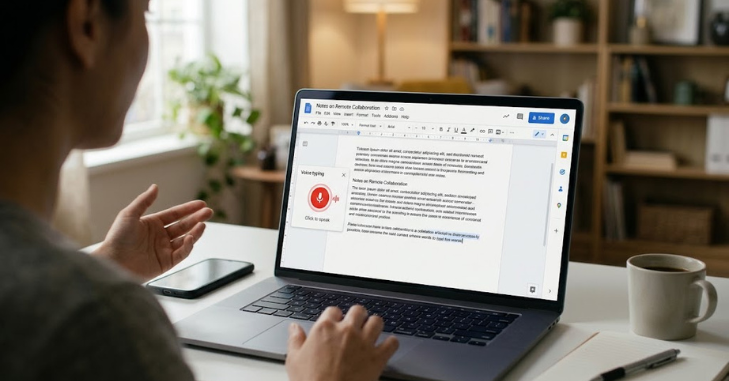
You can start dictating in Google Docs Voice Typing within a minute once your microphone works. A quiet environment generally produces cleaner results and fewer corrections. Google recommends speaking clearly at a normal volume and pace.
- Open a document. Sign in to your Google account and open the document you want to edit.
- Choose Tools > Voice typing. A floating microphone box should appear beside the document.
- Choose your language. Use the microphone box menu when you need a different language or regional accent.
- Click the microphone. Your browser may ask for microphone permission during the first session.
- Begin speaking normally. Your spoken words should appear around the current cursor position.
- Say punctuation commands when needed. Commands include “period,” “comma,” “question mark,” and “new paragraph.”
- Click the microphone again when finished. You can also use the supported spoken command to stop listening.
Google lists Chrome, Edge, and Safari among its supported browsers. Firefox does not appear on Google’s current supported-browser list for this feature. Using a supported browser should therefore be your first troubleshooting check.
Readers looking for more software tutorials can also browse Newssnaut’s Software section. The broader Tech section covers additional digital tools and technology topics.
Useful Voice Commands for Faster Dictation
Dictation becomes more useful when you speak commands instead of stopping to use the mouse. Google supports commands for text selection, formatting, navigation, and document editing. Many advanced voice commands require both the account language and document language to be English.
Common punctuation commands include:
- “Period”
- “Comma”
- “Question mark”
- “Exclamation point”
- “New line”
- “New paragraph”
You can also use commands such as “select paragraph,” “bold,” and “go to the end of the line.” Saying “stop listening” stops the microphone. Saying “resume” can return the cursor to the end of the paragraph and continue dictation.
Formatting and Editing Commands Worth Knowing
Voice commands can reduce keyboard use during longer writing sessions. For example, you can select text before applying formatting through speech. You can also navigate through paragraphs, lines, words, and other document elements.
Useful examples include the following.
- “Select all”
- “Select paragraph”
- “Select next word”
- “Bold”
- “Italics”
- “Underline”
- “Apply heading 2”
- “Create numbered list”
- “Go to end of paragraph”
- “Scroll down”
- “Undo”
Pause briefly before and after a command if Docs types the command as ordinary text. Google specifically recommends speaking slowly and clearly when commands fail. The microphone bubble can also help you see what the service heard.
How to Improve Voice Typing Accuracy
A good microphone can help, but your surroundings often matter more. Background conversations, television audio, and loud fans can interfere with recognition. Moving into a quieter room is one of Google’s recommended troubleshooting steps.
Speak naturally rather than exaggerating every word. Keep the microphone reasonably close without placing it directly against your mouth. A headset microphone may help when your laptop sits far from your normal speaking position.
Plan short sections before you dictate them. Speaking one clear thought at a time reduces false starts and repeated phrases. You can then correct individual mistakes without disabling the microphone.
Why Voice Typing May Not Be Working
Microphone permissions cause many failures. Your operating system can block microphone access even when your browser appears correctly configured. The browser itself can also deny microphone permission for the Docs website.
First, confirm that the microphone works in another application. Then check your computer’s privacy or microphone settings. Finally, verify that your browser has permission to use the microphone on the page.
Check Your Browser
Use a current version of Chrome, Edge, or Safari. A browser update can resolve compatibility problems after an older version stops behaving correctly. Restarting the browser after changing microphone permissions can also help.
If you use a work or school account, an administrator may disable the feature. Google explicitly notes that organizational administrators can turn voice functionality off. Contact your administrator when the menu remains unavailable on a supported browser.
Check the Microphone
Make sure another application is not monopolizing the microphone. Confirm that the correct input device is selected in your operating system. Increase the input level if your speech registers too quietly.
Google also recommends trying an external microphone when recognition remains poor. Restarting the computer is another official troubleshooting step. These checks are useful when Docs reports difficulty hearing you.
Can You Use Voice Typing on a Phone?
The dedicated desktop feature should not be confused with mobile keyboard dictation. On Android or iPhone, you normally speak through the microphone provided by your keyboard. That speech input can still place text inside a mobile document.
The difference becomes important when following desktop tutorials. Mobile keyboards have their own commands, settings, and speech-recognition behavior. The desktop Tools menu therefore should not be your reference point on a phone.
A 2026 Google Docs community response also distinguishes mobile keyboard dictation from the desktop feature. It explains that mobile speech input depends on the device keyboard rather than the desktop Docs tool.
When Voice Dictation Is Most Useful
Speech input works well for first drafts because speaking can keep ideas moving. It also helps when you need hands-free input or find prolonged keyboard use uncomfortable. Students, writers, and professionals can use it for notes, outlines, and rough document sections.
It is less suitable when every sentence requires precise punctuation or specialized spelling. Names, technical terms, and uncommon vocabulary may still need manual correction. Treat dictation as an input method rather than an automatic final editor.
For additional digital explainers, Newssnaut also publishes more digital explainers, which you can find on the Newssnaut homepage. Readers interested in social platforms can also see its guide explaining KMS on Snapchat.
Start With a Short Test
Open a blank document and dictate one paragraph before using speech input for important work. Test punctuation, microphone distance, and two or three commands. This short trial will expose permission or recognition problems quickly.
Once everything works, build a simple routine around short spoken sections and quick corrections. Save complex formatting for the editing pass when that feels faster. With the right setup, speech input can become a practical alternative to typing for everyday drafts.
Google Docs Voice Typing FAQ
Is Google Docs voice typing free?
Yes. The feature is built into Docs and does not require a separate paid dictation subscription. You still need a Google account, supported browser, microphone, and internet access for the normal web workflow.
What is the keyboard shortcut for voice typing?
In Chrome, commonly documented shortcuts are Ctrl + Shift + S on Windows and Command + Shift + S on Mac. You can always open the feature from the Tools menu instead. The menu method is useful when a shortcut conflicts with another application.
Why are my voice commands appearing as text?
Your language settings may be the reason. Google says voice commands are available only in English, with both account and document languages set appropriately. Pausing before and after a command can also improve recognition.
Can I correct a mistake without stopping the microphone?
Yes. Google says you can move the cursor, fix the mistake, then return to your previous location. You do not have to stop the microphone for every manual correction.
Does voice typing work in Google Slides?
Google supports voice input for speaker notes in Slides. Open the Tools menu and choose the option for dictating speaker notes. Editing and formatting voice commands do not work there like they do inside a document.
